Pi Network Node」タグアーカイブ

Complete Guide to Choosing Internet Fiber Optic Lines for Pi Node Operation and Depin

The internet has become indispensable in modern life, but choosing a fiber optic line is complex, and it’s easy to be misled by incorrect information. This article explains how to choose the right fiber optic line in an easy-to-understand way for beginners.

The main theme of this article is choosing a network line, but we also focus on choosing a line for operating a Pi Network node. Even if you are currently operating a node without problems, you can save on internet costs by switching to a different internet company every 2 to 3 years to take advantage of cashback campaigns. If you have been using the same internet company for over 3 years or are paying over 5,000 yen per month, why not consider changing your line at this opportunity? (You can save tens of thousands of yen annually)

Also, if you wish to operate a node with a family Pi Network account, choosing the right line is important. There is a rule of one node per line, so you cannot operate multiple nodes on a single line. Therefore, you will need to set up a new fiber optic line for family accounts. While getting a new line will incur monthly charges, it might be a good idea to operate it as a forward investment, believing in the future of the Pi Network.

Port forwarding is essential for Pi node operation. You can operate without port forwarding, but the amount of rewards you receive will decrease, so if you are going to operate, we recommend a fiber optic line that allows for more rewards.(Please note that port forwarding is not possible with mobile lines such as smartphones or home routers. If you want to do port forwarding, you must install a fixed line.)

We provide detailed information for those who are struggling with choosing a network line or want to know its benefits.

What is Fiber Optic Internet?

Fiber optic internet is a high-speed and stable internet connection service that uses optical fiber. Compared to mobile phone lines, it has the following characteristics:

  • High-speed communication: Up to 1Gbps, and 10Gbps in some service areas
  • Stable connection: Less affected by weather or distance
  • Suitable for sending and receiving large amounts of data
  • Port forwarding is possible. (Essential for Pi nodes)

Fiber optic line speeds are mainly in three stages:

  • 100Mbps: Slightly slow
  • 1Gbps: Standard and sufficient speed
  • 10Gbps: Ultra-high speed (offered by some services)

It is important to note that actual speeds vary depending on the contracted provider and region.
Pi nodes do not require a high-speed line; 100Mbps is sufficient for operation.

4 Steps to Choosing a Fiber Optic Line

There are four steps to choosing the right fiber optic line:

  1. Area search (checking property facilities)
  2. Distinguishing between TV and landline phone
  3. Comparing candidate fiber optic services
  4. Comparing advantageous information such as cashback

By following these steps in order, you can choose the fiber optic line that is best for you.

Step 1: Area Search

The first thing you should do is check the fiber optic facilities available at your property. This allows you to efficiently narrow down your options.

You can perform an area search on the official website of each fiber optic service provider. Be sure to check on the official websites introduced later.

Step 2: Distinguishing between TV and Landline Phone

If you plan to use TV or a landline phone, you need to check their relationship with the fiber optic line.

About Landline Phones

If you subscribe to a landline phone together with a fiber optic line, the cost may be lower. For example, if you switch from an NTT subscriber phone to a fiber optic phone, you may be able to use it for 550 yen per month.

About TV

In the case of apartments, digital terrestrial broadcasting is often available as a shared facility. For BS and CS, the facilities vary depending on the property, so confirmation is required. In the case of detached houses, you need to arrange your own TV reception method.

Step 3: Comparing Candidate Fiber Optic Services

When comparing fiber optic services, focus on the following 5 items

Communication Speed
Communication speed is an important factor directly linked to comfortable internet usage. Generally, a maximum download speed of 1Gbps is standard, but high-speed plans like 2Gbps and 10Gbps are also offered by services such as NURO Hikari. However, there is often a difference between theoretical values and actual measured values, so it is recommended to check the average speed of each company.

Monthly Fee
The monthly fee for a fiber optic line has a significant impact on long-term costs, so careful comparison is necessary. The fees for many fiber optic services range from the upper 4,000 yen range to the 6,000 yen range, but you can sometimes reduce the effective monthly fee by using campaigns and discounts.

Initial Costs
Initial costs, such as construction fees and administrative fees, are a significant burden when starting a service. Generally, construction fees cost around 20,000 to 40,000 yen, but they can be free or paid in installments depending on campaigns. It is advisable to choose a service that can reduce initial costs.

Cancellation Fees
If you cancel within the contract period, a penalty fee may be incurred. For contracts made after July 2022, the penalty fee is often set at one month’s worth of the monthly fee. However, if you choose a plan with no contract period restrictions, you can use the service without worrying about cancellation fees.

Construction Details
Construction is required to open a fiber optic line, but the details differ between detached houses and apartments. If a fiber optic outlet is already installed, the construction may be simplified. It is important to check the construction details in advance and make the necessary preparations and obtain permissions.

Step 4: Comparing Advantageous Information

Finally, compare benefits such as cashback and free construction fees. However, it is important not to be misled by large amounts on the surface; always check the details and conditions of the benefits and determine if you can actually receive them.

When using cashback campaigns or free construction fee benefits, compare the total payment amount over 2 or 3 years with the cashback amount to calculate if it is advantageous.

For example, if the monthly payment is 5,000 yen and the cashback campaign is 80,000 yen, calculate as follows.

Total Payment 5,000 yen × 24 months = 120,000 yen

Cashback Amount 70,000 yen

Actual Burden Amount 120,000 yen – 70,000 yen = 50,000 yen
Dividing 50,000 yen by 24 months, the effective monthly payment is 2,083 yen, which is significantly cheaper.

However, if you do not carefully check the timing and conditions for receiving the cashback, you may not get the expected results. Be sure to understand them in advance.

Types of Fiber Optic Lines

FLET’S Hikari
A fiber optic service provided by NTT, with the following features:

  • Developed nationwide by NTT East and West
  • Stable communication quality
  • Can connect with many providers

Hikari Collaboration (Hikari Collabo) Line
A fiber optic service provided uniquely by each telecommunications carrier using FLET’S Hikari facilities.
Representative examples include Docomo Hikari and SoftBank Hikari. It has the following features:

  • Communication quality equivalent to FLET’S Hikari
  • Many pricing plans include the provider
  • Attractive set discounts with mobile phones

Power Company Lines
A fiber optic service provided by regional power companies, mainly with the following features:

  • Examples: Kansai Electric Power’s “eo Hikari”, Chubu Electric Power’s “Commufa Hikari”
  • Service area is limited to the power company’s supply area
  • Uses its own fiber optic network for high-speed and stable communication
  • Attractive set discounts with electricity

Independent Lines
A line that uses a fiber optic network independently laid by a telecommunications carrier.
Representative examples include au Hikari and NURO Hikari. It has the following features:

  • Ultra-high speed communication is possible in some areas (Example: NURO Hikari up to 2Gbps)
  • Limited service area
  • Provides high-quality service by utilizing unique technology and infrastructure

It is important to choose the optimal service from these fiber optic line types according to your residential area, purpose of use, and budget. For example, if you prioritize communication speed, NURO Hikari or power company lines are suitable, and if you want to utilize set discounts with mobile phones, a Hikari Collabo line would be a good choice.

Recommended Fiber Optic Line: au Hikari × So-net (Used by the Administrator)

au Hikari is a high-speed and stable fiber optic service, and So-net is the provider contract. There are areas where ultra-high speed communication up to 10Gbps is possible, and So-net’s unique discount benefits and cashback are attractive. Set discounts are also available for smartphone users who use au and wimax lines, making it even more advantageous. This line is recommended for those seeking a comfortable internet environment. The administrator’s home also uses this for node operation and is so comfortable that there are no complaints.

Relationship between So-net and au Hikari

First, the relationship between So-net and au Hikari is as follows.

  • So-net: An Internet Service Provider (ISP) provided by Sony Network Communications
  • au Hikari: A fiber optic service provided by KDDI

So-net provides internet service using au Hikari’s fiber optic line as a provider. In other words, the combination is au Hikari for the line and So-net for the provider.

Features and Quality of au Hikari

au Hikari is reputed as a high-quality internet service.

  • Ultra-high speed communication up to 10Gbps is possible in some areas of Kanto (Tokyo, Kanagawa, Saitama, Chiba) (detached houses only)
  • Provides high-speed communication up to 1Gbps in other areas as well
  • Achieves stable communication quality through control using its own facilities

Note: In the case of apartment types, the communication speed may change depending on the wiring situation within the building. Confirmation is required in advance. This will be known at the time of application.

Wiring Methods for Apartment Types

When using au Hikari in an apartment, there are the following wiring methods:

  • VDSL method: Uses metal lines, up to 100Mbps
  • LAN method: Uses LAN cables, up to 100Mbps
  • G.fast method: Up to 660Mbps (however, it may be 100Mbps depending on the wiring distance)

These methods may experience a decrease in communication speed due to congestion depending on the time of day.
Since this method uses the building’s facilities, it will be the same method even if you switch to another line. The line speed will be slower because it is shared in the apartment, but there is the advantage of lower fees.

Benefits of Choosing So-net

There are the following benefits:

  • Large cashback (amount varies depending on the contract plan and campaign details)
  • Discount on installation fees or installment payment options
  • Wi-Fi router rental service (up to 6 months free)
  • Security and support option services

Example Pricing Plans

Let’s look at specific pricing plans.

For Detached Houses: Zutto Giga Toku Plan

  • 3-year contract
  • Monthly fee: Approx. 6,000 yen (for 3 years)
  • From the 36th month onwards: 5,390 yen per month
  • Penalty fee: 4,730 yen (in case of early cancellation)
  • Installation fee: 41,250 yen (installment payment)

For Apartments: V16 Plan

  • 2-year contract
  • Monthly fee: 4,180 yen (always)
  • Penalty fee: 2,290 yen (in case of early cancellation)
  • Installation fee: Offset over 2 years with So-net’s discount benefits

Note: Don’t forget the cashback procedure! You will receive guidance via email to your So-net email address.

Building a Wi-Fi Environment

Here’s how to build a Wi-Fi environment with au Hikari:

  1. Use au Hikari’s home gateway (550 yen per month, free with some plans)
  2. Purchase your own Wi-Fi router
  3. Rent a So-net Wi-Fi router (440 yen per month, up to 6 months free)

For beginners, using au Hikari’s home gateway is the easiest.
The administrator purchased their own Wi-Fi router because the monthly fee was a waste.

Other So-net Benefits

  • Mobile Wi-Fi router rental service while waiting for installation
  • Security service
  • Internet and PC support options

Additional au Hikari Benefits

When switching from another company, there is a maximum reduction of 30,000 yen. However, please note that charging to auPAY balance, reduction via postal money order, or subscription to a phone service may be required.

Summary: Key Points of au Hikari × So-net

  1. High-quality communication environment (especially for detached houses)
  2. So-net’s unique discount benefits and cashback
  3. Even more advantageous for au and UQ mobile users
  4. Be mindful of the wiring method for apartment types
  5. Wi-Fi environment setup options available

The combination of au Hikari and So-net is particularly recommended for those seeking a high-speed and stable communication environment. However, if you live in an apartment, be sure to check the building’s wiring situation carefully. Also, be careful with procedures so as not to miss out on benefits such as cashback.


Recommended Fiber Optic Line 2: NURO Hikari Experience the Fastest Internet with Amazing Speed!


Are you feeling stressed by slow internet? Are you looking for a comfortable experience with online games and streaming services? If so, we recommend NURO Hikari. This article provides a thorough explanation of NURO Hikari’s features, actual communication speed, comparison with other fiber optic lines, detailed pricing plans, and even user reviews.

What is NURO Hikari?

NURO Hikari is a high-speed fiber optic internet service provided by Sony Network Communications. It has received high praise from many users for its overwhelming speed and stability.

Main Features of NURO Hikari

  • High-speed communication up to 2Gbps download (up to 10Gbps with the 10 Giga plan)
  • Monthly fee of 5,200 yen (3-year contract plan) including provider fee
  • ONU with wireless LAN router function provided free of charge
  • Free security software
  • Service area is limited to some regions

NURO Hikari’s Overwhelming Speed

Actual Communication Speed

The actual measured values for NURO Hikari are as follows:

  • Average download speed: Approx. 587.92Mbps
  • Average upload speed: Approx. 538.18Mbps

These figures are very high compared to other major fiber optic services, indicating that NURO Hikari boasts top-class speed among fiber optic lines.

Speed Comparison with Other Fiber Optic Lines (Administrator’s Research)

Line Name Average Download Speed Average Upload Speed
NURO Hikari 587.92Mbps 538.18Mbps
au Hikari 369Mbps 315Mbps
SoftBank Hikari 242Mbps 170Mbps
Docomo Hikari 217Mbps 182Mbps
FLET’S Hikari 220Mbps 187Mbps

From this comparison table, the overwhelming speed of NURO Hikari is clear at a glance. In particular, the balance between download and upload speeds is excellent, making it ideal for sending and receiving large files and streaming high-quality videos.

Usage Scenarios for NURO Hikari

NURO Hikari’s high-speed communication demonstrates its true value in the following situations:

  1. 4K/8K Video Streaming: Enjoy ultra-high quality videos simultaneously on multiple devices.
  2. Large File Download/Upload: Transfer large files of several GB in just a few minutes.
  3. Online Gaming: Achieve comfortable gameplay without lag.
  4. Cloud Backup: Back up large amounts of data in a short time.
  5. Telework: Conduct high-quality video conferences and share large files smoothly.

NURO Hikari Pricing Plan Details

NURO Hikari offers different plans for detached houses and apartments.

Plans for Detached Houses

  • NURO Hikari 2 Giga (3-year contract): 5,200 yen per month
  • NURO Hikari 2 Giga (2-year contract): 5,700 yen per month
  • NURO Hikari 2 Giga (no contract period): 6,100 yen per month
  • NURO Hikari 10 Giga (3-year contract): 5,700 yen per month
  • NURO Hikari 10 Giga (no contract period): 8,300 yen per month

Plans for Apartments (NURO Hikari for Mansion)

  • 2 Giga (3-year contract): 2,090 yen ~ 2,750 yen
  • 2 Giga (2-year contract): 2,530 yen ~ 3,190 yen
  • 2 Giga (no contract period): 2,970 yen ~ 3,630 yen
  • 10 Giga (3-year contract): 2,640 yen ~ 3,300 yen

Initial Costs and Construction Fees

  • Administrative fee: 3,300 yen
  • Construction fee: 44,000 yen (With 3-year and 2-year contracts, there are campaigns that make it effectively free)

These pricing plans are reasonable compared to other high-speed line services. In particular, the fact that the provider fee is included and that a free Wi-Fi router and security software are provided are very attractive when considering overall cost performance.

NURO Hikari Service Area

NURO Hikari is available in the following areas:

  • Hokkaido Area: Hokkaido
  • Kanto Area: Tokyo, Kanagawa, Saitama, Chiba, Ibaraki, Tochigi, Gunma
  • Tokai Area: Aichi, Shizuoka, Gifu, Mie
  • Kansai Area: Osaka, Hyogo, Kyoto, Shiga, Nara
  • Chugoku Area: Hiroshima, Okayama
  • Kyushu Area: Fukuoka, Saga

The service area is gradually expanding, but it is still limited to some regions. Be sure to check if your address is within the service area before signing a contract.

NURO Hikari User Reviews

Positive Reviews

  • 「Communication speed is very fast and comfortable」
  • 「Satisfied after switching from another line」
  • 「Video viewing and online games are smooth」

Many users who actually use it give high ratings for its speed and stability. In particular, users who frequently handle large amounts of data and those who enjoy online games seem to have high satisfaction.

Negative Reviews

  • 「Speed can be slow depending on the time of day」
  • 「Support response takes time」
  • 「Installation takes time」

On the other hand, some users express dissatisfaction like the above. In particular, many users point out that installation takes time, so caution is needed if you want to set up an internet environment quickly.

Tips for Maximizing NURO Hikari Usage

  1. Utilize Wired Connection: For devices that require high-speed communication, use a wired connection whenever possible.
  2. Optimize Wi-Fi Environment: Enjoy high-speed communication throughout your home by properly placing your Wi-Fi router and utilizing Wi-Fi extenders.
  3. Security Measures: Utilize the free security software provided and use the internet safely.
  4. Regular Speed Checks: Measure your actual communication speed regularly and consult support if there are any issues.

Summary: Pros and Cons of NURO Hikari

Pros

  • High-speed and stable communication speed
  • Relatively low monthly fee
  • Provision of free Wi-Fi router
  • Free provision of security software

Cons

  • Limited service area
  • Takes time until activation
  • Room for improvement in support response

Differences between NURO Hikari and Other Providers

Comparison with FLET’S Hikari

FLET’S Hikari is a service with many users nationwide, but compared to NURO Hikari, there are the following differences:

  1. Speed: NURO Hikari has a maximum download speed of 2Gbps, while FLET’S Hikari is up to 1Gbps.
  2. Stability: FLET’S Hikari tends to experience speed reduction in areas and time slots with many users, but NURO Hikari is relatively stable because it uses its own line.
  3. Price: NURO Hikari tends to have a lower monthly fee.

Comparison with Mobile Lines (SoftBank Air, Docomo Home 5G, etc.)

Mobile lines are attractive for their ease of installation, but they are inferior to NURO Hikari in the following respects:

  1. Speed Stability: Mobile lines use radio waves, so speed fluctuates greatly depending on the surrounding congestion. NURO Hikari uses optical fiber, allowing for stable high-speed communication.
  2. Upload Speed: Mobile lines tend to have slow upload speeds, but NURO Hikari allows for high-speed uploads.
  3. Data Capacity: Mobile lines often have data capacity limits, but NURO Hikari is virtually unlimited.

Points to Note When Introducing NURO Hikari

We believe you have fully understood the appeal of NURO Hikari. However, when considering its introduction, the following points also require attention.

1. Time Until Activation

Introducing NURO Hikari usually requires two construction visits (in-home and outdoor). Therefore, it may take time from application until you can actually use it. The shortest is about 3 weeks, but it can take more than 6 months depending on the area and building situation. Especially in collective housing such as apartments and condominiums, permission from the owner or management association is required, which may take even more time.

When I had NURO Hikari installed before, there was a construction issue during the in-home work, and I had to wait about a week when it was postponed. If you want to shorten the time until activation, there is an option available to perform the in-home and outdoor construction simultaneously, so I recommend using this if you are in a hurry to get activated.

2. Service Area Restrictions

As of 2024, NURO Hikari is mainly provided in the following areas:

  • Kanto Area (Tokyo, Kanagawa, Chiba, Saitama, etc.)
  • Kansai Area (Osaka, Hyogo, Kyoto, etc.)
  • Tokai Area (Aichi, Shizuoka, etc.)
  • Kyushu Area (Fukuoka, Saga, etc.)
  • Hokkaido

Even in urban areas, the service may not be available in some areas, so it is important to check in advance if your address is within the service area.

3. Provider Selection Restrictions

NURO Hikari must be contracted as a set with the provider service offered by So-net. Therefore, you cannot contract with other providers or use independent provider plans.

Tips for Maximizing NURO Hikari Usage

Once you have introduced NURO Hikari, make the most of its high-speed line. Please refer to the following tips.

1. Optimizing the Wi-Fi Environment

To make the most of NURO Hikari’s high-speed line, building an appropriate Wi-Fi environment is important.

  • Use the Latest Wi-Fi Router: By using a Wi-Fi 6 compatible router, you can achieve faster and more stable wireless connections.
  • Proper Placement: Place the Wi-Fi router as centrally as possible and avoid obstacles.
  • Utilize Wi-Fi Extenders: In large homes or homes with many obstacles, use Wi-Fi extenders to cover areas where the signal is weak.

2. Utilizing Wired Connections

For devices that require high-speed communication (game consoles, desktop PCs), use a wired connection whenever possible. With a wired connection, you can maximize the use of NURO Hikari’s high-speed line without Wi-Fi interference. Wired connection is recommended for PCs running nodes. Even if the internet is fine when connected via Wi-Fi, troubleshooting on the Wi-Fi side can be troublesome if issues occur.

3. Security Measures

To use high-speed internet safely, take the following security measures:

  • Keep the router’s firmware up to date
  • Set a strong Wi-Fi password
  • Turn off Wi-Fi when not needed
  • Consider using a VPN service

Summary: Experience Next-Generation High-Speed Internet with NURO Hikari!

NURO Hikari can be said to be one of the most noteworthy internet services currently available, due to its overwhelming speed and stability, as well as its high cost performance. It is truly an ideal choice, especially for users who require a high-speed and stable internet environment for online gaming, video streaming, transferring large files, and more.

However, caution is required regarding service area limitations and the time until activation. When considering a contract, it is recommended to fully consider your usage situation and needs, and check the latest information on the official NURO Hikari website.

By introducing NURO Hikari, your online life may change dramatically. A high-speed and stable internet environment is sure to make your daily life richer and more efficient. Why not consider introducing NURO Hikari?

For contract and details, please click the banner below

Points to Note When Contracting and Advantageous Information

Points to Note When Contracting

  1. Don’t be misled by large numbers on the surface
    • The notation “equivalent to up to ○○ yen” is the amount when all conditions are met.
    • Cashback may require application, and you may not receive it if you forget.
    • Free construction fees may actually be in a form that offsets 24 monthly installments.
  2. Is Fiber Optic Internet a Matter of Luck!?
    • The quality and speed of fiber optic lines vary depending on where you live, the building, and the user’s environment.
    • Even with the same fiber optic line, speed and stability can be completely different in rural and urban areas.
    • It is important to find the best line for your environment, not just rely on reviews.

Advantageous Information

  1. Cashback Campaigns
    • Many providers offer high cashback amounts.
    • It is important not to forget the application procedure.
  2. Discount Plans
    • There are various discount plans, such as set discounts with smartphones.
    • By choosing the right provider, it may be possible to save around 2000 yen per month.
  3. Free Construction Fee Campaigns
    • Some providers are running campaigns to make construction fees free.
    • Check the conditions carefully and confirm if it is effectively free.

Summary: How to Choose a Fiber Optic Line Without Failing

  1. Clarify Your Needs
    • Consider purpose of use, required speed, and budget
  2. Check Area and Available Services
    • Perform an area search on the official website
  3. Compare Multiple Fiber Optic Lines
    • Compare speed, monthly fee, initial costs, cancellation fees, and construction details
  4. Check Provider Reviews
    • Refer to reviews and rating sites
  5. Utilize Campaigns and Advantageous Information
    • Check cashback and discount plans and understand the conditions well
  6. Check Detailed Conditions Before Contracting
    • Check minimum usage period, cancellation fee, actual speed, etc.
  7. Consult an Expert if Necessary
    • If you have any questions, contact the support of each provider

Choosing a fiber optic line may seem complicated at first glance, but by following the steps introduced in this article, you should be able to find the fiber optic line that is best for you. It is important not to be swayed by benefits such as cashback, but first to choose a service that meets your needs. By knowing the correct way to choose, you can make a contract without regret and enjoy a comfortable internet life.
Issues After Pi Node 0.5.0 Update and How to Fix Them

Pi Network Node 0.5.0 Update: Operation Issues and Solutions

The Pi Network node has been updated to version 0.5.0, but many users are facing operational issues. This article provides a detailed explanation of the problems occurring, their potential causes, and possible solutions. My Pi node also automatically updated and is running. As I mentioned in a previous article, its behavior is strange, so I am leaving it untouched for now.

Main Operational Issues

The following issues have been reported after the update:

  • Cannot Sync: Many users are unable to sync their nodes.
  • Blockchain Not Running: The message “Your computer is not running the blockchain” may be displayed.
  • Difficulty Connecting to Testnet 2: Cases of being unable to connect to the new Testnet 2 have been reported.

Possible Causes

Several factors may be related to these issues:

  1. Port Forwarding Status: If ports are not properly forwarded, synchronization issues may occur.
  2. OS Compatibility: There seems to be a difference in operation between Windows 10 and Windows 11.
  3. Network Load: Possible temporary load due to many users updating simultaneously.
  4. Docker Container Issues: The newly added containers may not be functioning correctly.

Solutions and Recommended Actions

To resolve the issues, please try the following actions:

  • Wait: In many cases, waiting for a while may resolve the issue.
  • Check Port Settings: Recheck your router’s port settings and reconfigure if necessary.
  • Restart the Application: Completely close the node application and try restarting it.
  • Switch Testnets: Switch between Testnet 1 and 2 to check for differences in operation.
  • OS Update: Try updating Windows Update to the latest version.
  • Docker Version Update: Try updating the version and checking the operation.
    (Information provided via Twitter)
  • Check Community Forums: Check Pi Network chat or Twitter for the latest information and solutions from other users.

Future Outlook

The Pi Network development team is aware of these issues and is likely working towards a resolution. The following improvements are expected in future updates:

  • Improved Stability
  • Improved OS Compatibility
  • Synchronization Process Optimization

Summary

The update to Node 0.5.0 is an important step for the development of the Pi Network, but temporary issues seem unavoidable. We recommend that users respond patiently and share information within the community.

Finally: These issues are common during the introduction of new technology. Believing in the long-term vision of the Pi Network and continuing to support the development team’s efforts will lead to the project’s success. Let’s look forward to future updates.

How to Run a PiNode: Static IP, Node Settings, and More Explained

Here’s how to run a Node on Pi Network.
Running a Node adds to your daily mobile mining rewards.
Once set up, it’s recommended as your mining rewards will increase without extra effort.
(Reports indicated that the infinite loading issue was resolved around March 2, 2024. If you had previously stopped the setup, we recommend doing so now.)

→ The infinite loading issue has been completely resolved. Normal operation is possible.

Addendum 2024/10/19
A version update (0.5.0) was released on October 17.
The installation method is basically the same as below.
The content has been updated to match the latest version, so please follow the steps.
For details on the latest version update, please refer to the article below ↓.

Pi Node 0.5.0 Beta Update: Latest Information and Notes
https://pinetwork.masters-all.com/pi-network-new-node-version/

Version 0.5.1 was released in February 2025. The version update is automatic.
Pi Node Latest Version v0.5.1: Importance of Mainnet Migration and Operation

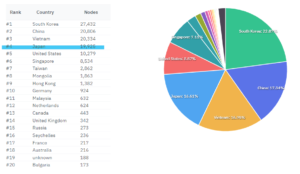
Japan is currently ranked 4th in the world ranking for running Pi Nodes.
We are gradually climbing the ranks and aim for the top spot.
(As of 2023/6/11)

If you haven’t joined Pi Network yet, please join from here.
https://pinetwork.masters-all.com/start/

Addendum: As of March 3, 2024, we are ranked 2nd with 30,382 nodes.

Advantages and Disadvantages of Running a Node

Advantages of Running a Node
A Node bonus is added to the reward you receive when you tap the mining button daily. (In the administrator’s environment, it was about 6.4 Pi per day at the time of writing.)

Also, you can contribute to Pi Coin transactions. By running a Node, transaction records of the same content are distributed among each Node (PC), which helps prevent fraud.
→ After 1 year and 2 months of operation, the reward increased to about 8.8 Pi per day.
→ After about 3 years of operation, the reward increased to about 11.6 Pi per day.

Disadvantages of Running a Node
Running a Node assumes that your PC is kept running 24 hours a day without going into sleep mode. This will increase your electricity bill, but it’s good to operate it as a forward investment in the future potential of Pi Network. You can also run the Node only while you are using the computer without running it 24 hours a day, but the rewards will be limited. The electricity bill depends on the PC’s performance and your electricity contract, but it is estimated to be around 1000 yen per month.

About the Computer Required for Running a Node

In the administrator’s environment, I can earn about 6.4 Pi per day, but the reward will be lower with a PC with low CPU performance (I tried with a low-performance sub-PC and barebone). The administrator initially ran it on an old spare PC, but the reward was less than what others reported, so I was able to get this much reward per day by running the Node on my main PC (gaming machine). Also, no matter how high-spec a computer you use, the highest reward is around 20 Pi, so if you are currently receiving around 11.4 Pi, you are probably getting a sufficient amount. Running a Node does not require a high-spec PC, but rather a certain level of CPU performance and a stable network environment for continuous operation.

(Reference) Administrator’s Main PC Specs
Processor AMD Ryzen 5 3600X 6-Core Processor 3.79 GHz
Installed RAM 32.0 GB
System Type Windows 10 64-bit Operating System, x64-based Processor

What You Need for Mining

・Computer (Windows or MAC)
Install the software required for Node operation on your computer. A high-spec computer is not required. Either a laptop or a desktop is fine. Heat emitted from the PC can cause malfunctions, so it is recommended to choose a desktop PC that can handle heat dissipation. This article introduces the installation method for Windows.

・Electricity Bill
Electricity costs will be incurred while the computer is running.
Power consumption varies depending on the computer you run, so please check if you are concerned.

・Stable Network Environment (*Port forwarding is essential to get high rewards)
Connect your home fixed line to your computer. Mobile lines and mobile data lines are not considered stable network lines and are not suitable for Node operation. Also, since about 1GB of data is communicated per day, mobile data lines will quickly use up your data, so a fixed line with no usage limit and port forwarding capability is recommended. If you are considering a new internet contract for operation, please check if port forwarding is possible before signing the contract. It would be disastrous if you find out after signing the contract that port forwarding is not possible.

Please refer to this for recommended fixed lines
https://pinetwork.masters-all.com/node-internet/

*About Port Forwarding
Port forwarding is essential for distributing the ledger. You can run a Node and earn rewards on a line that does not allow port forwarding, but you cannot earn much. Also, mobile lines often do not have a global IP address, so port forwarding is not possible. Please check.

Check the Flow of Node Setup

The time required for setup is about 30 minutes to 1 hour.

① Check if port forwarding is possible and set up port forwarding
Check if the internet line you are subscribed to allows port forwarding.
If the line does not allow port forwarding, you cannot run a Node, so be sure to check if it is possible before proceeding to the next installation. Even if port forwarding is not possible, you can still receive a Node bonus, but the reward will be small.

② Fix IP address, fix firewall
Fix the IP address assigned to your PC. The IP address changes every time you restart your PC, so fixing it prevents port forwarding issues.

③ Router port settings
Set up port forwarding for the fixed IP address.

④ Install and set up Node software
Install and set up the software required to set up the Pi Node.

⑤ Install and set up Docker
Install and set up the software required to run the Pi Node.

⑥ Remote control software settings (optional)
Check the PC screen from your smartphone in case of computer trouble during Node operation. Operation is possible even without this setting.

Other: About changing PCs
Explains the necessary steps to switch operation to a higher performance PC.

Other: How to improve network quality
To operate the Pi Network, you need to have high network quality. Explains how to improve it.

Set up Pi Node

If you are running the Node without port forwarding, please skip to the Node installation section.

Check if Port Forwarding is Possible and Set up Port Forwarding on the PC Side

Check if Port Forwarding is Possible
Check if the internet line you are subscribed to allows port forwarding.
To check, use search engines like Google or Yahoo and search for
your provider name + port forwarding. You should find websites explaining how to open ports. This article explains how to open ports with Rakuten Hikari. If you cannot resolve the port forwarding method with this article, please refer to the explanation sites found on search engines. Port forwarding may be an unfamiliar term, but it is something that people who play online games or run servers at home set up, regardless of Pi Network, so you should find explanations from a wide range of people. Even if you set up the Node operation software, if the line does not allow port forwarding, the setup time will be wasted, so please check if it is possible in advance. As mentioned above, it is difficult to open ports on mobile lines, so set it up on a fixed line.

Port Forwarding Settings: Fixing the IP Address

Once you have confirmed that port forwarding is possible, you will actually set up port forwarding.
In a typical home environment, the IP address changes automatically every time you start your PC, so you need to fix the IP address. If you don’t fix the IP address, you will have to set up port forwarding every time, so be sure to fix it.

Check Line Information

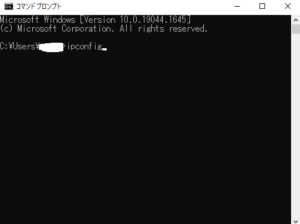
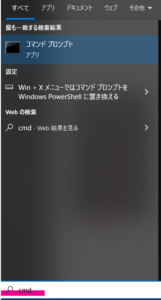
Press the Windows key in the bottom left and type “cmd”.
Then, Command Prompt will appear in the search results.
Click on it.
(Command Prompt is a tool used to check the status of your computer)

When you click, a software with a black screen will start.
Type ipconfig  and press Enter.
(The part erased in white is the PC name)

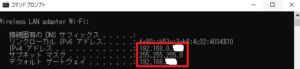
When you press Enter, the network information that your computer is connected to will automatically appear.
Pick up the network information from this.

For wireless LAN connection: Wireless LAN adapter Wi-Fi
For wired LAN connection: Ethernet adapter Ethernet
The network information will be displayed.

My environment is wired LAN, so it is displayed as follows.
Note down the information in the red-boxed area that is displayed, or keep this screen open.
You will use this information in the next step to fix the IP address.

Settings to Fix the IP Address

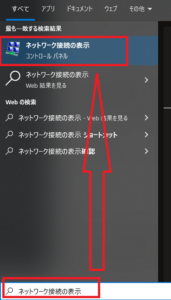
Press the Windows key in the bottom left and type “View network connections”.
Then, the menu enclosed in red will appear in the search results.
Click on it.

If you cannot do this,
Click on Windows key → Gear icon → Network & Internet → Ethernet → Change adapter options in order to reach the same screen.

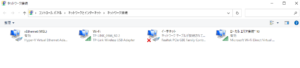
A screen like this should be displayed.

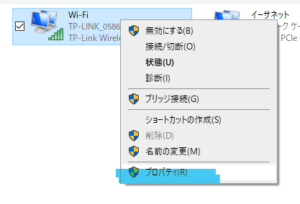
Now, fix the IP address for the network you are currently connected to.
If you are connected via Wi-Fi, Wi-Fi will be displayed. If you are connected via wired LAN, Ethernet will be displayed.
Right-click on the connected network and click Properties.


When you click Properties, a screen like this will appear.
First, uncheck the box to the left of Internet Protocol Version 6 (TCP/IPv6). (If it’s already unchecked, that’s fine. Unchecking it can prevent one cause of port forwarding issues.)
Next, click on Internet Protocol Version 4 (TCP/IPv4) and press Properties.

When you press Properties, the following screen will appear.
Here, you will use the network information that was displayed when you typed ipconfig earlier.

Set the options from top to bottom.
① Check “Use the following IP address”.
② IP address: Use an arbitrary address.
Fix the red-colored part below with a number you like.
Example: 192.168.0.199
↑ Fixing this part is called fixing the IP address.
If there is someone knowledgeable about networking at home and 199 is already in use, please use a different number.

③ Subnet mask: Enter the subnet mask you noted down earlier.
④ Default gateway: Enter the default gateway you noted down earlier.
⑤ Preferred DNS server: Enter the preferred DNS server you noted down earlier.

When you are finished entering, press OK.
If you make a typing mistake here, you will lose internet connection.
If you lose connection, you can reset it by clicking “Obtain an IP address automatically” on this properties screen. Please try again.

Port Forwarding Settings / Firewall Settings

Windows Firewall is a feature that automatically protects your computer. Once you change this setting, the port forwarding procedure is complete.

Press the Windows key in the bottom left and type “Windows Defender Firewall with Advanced Security”.
Then, “Windows Defender Firewall with Advanced Security” will appear in the search results.
Click on it.

The Advanced Settings screen will open.
Click on Inbound Rules, which is underlined in red.

If the above does not appear,
Click on “Start” → “Control Panel” → “System and Security” → “Windows Defender Firewall” → “Check firewall status” → “Advanced settings” in order to reach the same screen as below ↓.

Click on New Rule, which is highlighted in red.

The New Inbound Rule Wizard will open.
Select Port, which is highlighted in red, and click Next.

Select TCP at the top
Specify the port numbers required for the Pi Network Node in Specific local ports.
Enter the numbers 31400-31409.
Once entered, click Next.

Select Allow the connection at the top and click Next.

Check all options for “When does this rule apply?” and press Next.

Give the rule a name.
Spaces are not allowed, so give it an arbitrary name.
I named it “Port Forwarding”, but it’s best to give it a name that is easy for you to understand.
If you decide to stop running the Pi Node and want to delete the rule, you will search for this name to delete it, so an easy-to-find name is good.

Port Forwarding on the Router Side

Settings are also required on the router side to open ports.
The settings so far were for the PC side. Port forwarding settings are only complete when you can configure the router side for internet connection. The setup method varies depending on the router manufacturer.
I will introduce websites with easy-to-understand explanations that the administrator found, categorized by manufacturer, and provide supplementary information.

・Common settings
① The fixed IP address set on the PC side and the IP address for port forwarding set on the router side must be the same.
② Port forwarding numbers: The port forwarding numbers required for Node operation are 31400-31409.
Some manufacturers require you to specify and set each number individually: 31400, 31401, 31402, 31403, 31404, 31405, 31406, 31407, 31408, 31409.
③ Accessing the router’s administration screen: You can access the administration screen by entering the default gateway number you noted down when fixing the IP address into a web browser (such as Google Chrome or Microsoft EDGE).

TP-LINK
https://www.akakagemaru.info/port/tplink-portfw.html
Please refer to Port Forwarding Method (NAT Forwarding / Port Forwarding Settings).

BUFFALO
https://zedlabo.com/port-buffalo/
Reading from the top down is easy to understand.

NEC
https://www.aterm.jp/support/qa/qa/00020.html
Entering the model name of your router will bring up explanation pages for each model.

ASUS
https://kuritaroh.com/2021/05/18/asus_portopen/
The article is divided by topic. Please refer to the parts you are unsure about.
It seems to be called Port Forwarding instead of Port Opening.

I-O DATA
https://www.akakagemaru.info/port/iode-ta
Introduced by model.
Please look at the explanation page for your model.

If you are using a manufacturer other than the above, or if an explanation page does not appear, search on search engines like Google for
model name + port forwarding, and you should find individual explanation pages, so please search for them.

Check if Port Forwarding is Working

Check if port forwarding is working.
Access the site below to check if the port numbers you set up for port forwarding are open.

https://www.akakagemaru.info/port/tcpport.php

When you access the site, the following screen will appear.
Enter the numbers you set earlier in the port number field you want to check.
Try entering each number individually: 31400, 31401, 31402, 31403, 31404, 31405, 31406, 31407, 31408, 31409.

After entering, the screen will change, and if it is open, the screen below ↓ will be displayed.
This screen indicates there is no problem.

A site that supports Pi Node and can check port forwarding in bulk (English notation)

https://pi-mods.de/nodeports/

Access the above and select Fast or Slow.
Fast should be fine, so just click scan.

Wait a few seconds, and the result of the port forwarding check will be displayed.

Normally, it is said that it is fine if only 31401-31403 are open. If the notation is the same as above, there is no problem.
The following text is written in English at the bottom of the site.

Note: The Pi Consensus container only uses 3 ports (31401, 31402, 31403), the other ports remain closed. The Stellar Dummy Port Test container requires ports 31400 through 31409 to be open.

How to Set up Pi Network Node

Node Software Installation and Setup

Download the Node software distributed on the official website.
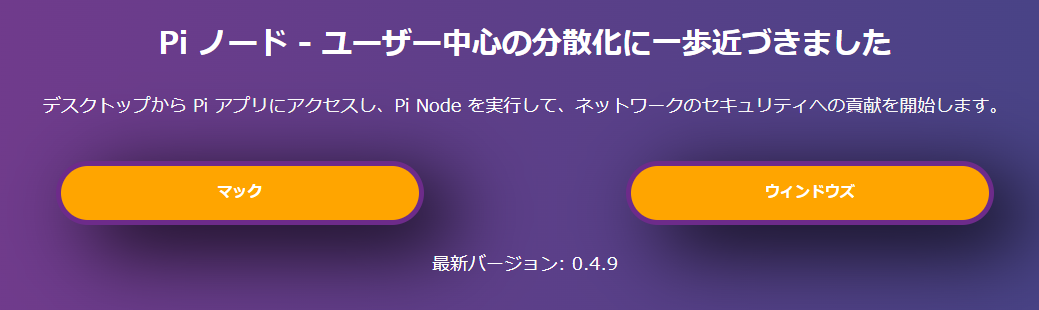
Click the URL below.
https://node.minepi.com/node/

You should see a screen like the one below ↓. Select and download the software that matches the computer you are using. (Normally it is in English, but I am using Chrome’s translation function to display it in Japanese.)

The software size is 139MB, so please wait for a while.

Once the download is complete, launch the installation program.
When you launch it, the installation of the Pi Node app will start automatically.

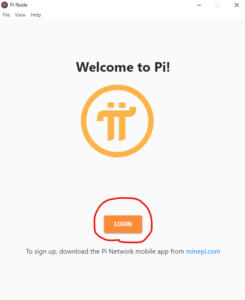
When the installation is finished, you will see the screen below ↓.
Click LOGON in the red circle.

This will be the sign-up screen.
This is to log in with the account you are mining with on your smartphone and the program you just installed.
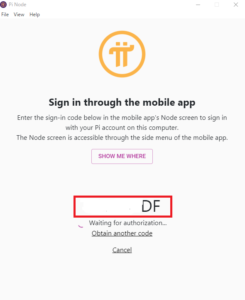
The screen below ↓ will appear. (The area enclosed in red is the sign-in code. You will use this in the next step.)
With this screen open, launch the Pi app on your smartphone.

In the Pi app, click the three lines in the top left to display the menu, and tap the Node menu item located towards the middle to bottom to open it.

Once opened, a screen confirming sign-in to PiNode will open.
Here, enter the sign-in code.
This code is the code currently displayed on your computer.
Enter the code, which is a combination of English letters and numbers, into your smartphone.

Once you have finished entering, the sign-in will be complete.

Application Response Regarding Node Operation

When you sign in, the screen below ↓ will be displayed first.
Fill in the application form to apply to become a node on the Pi Testnet.
Translating this,
“Fill in the application form to apply to become a node on the Pi Testnet.”
it says.
When operating a Pi Node, there are questions about operation on the next screen.

Question Details
Node Application Form
Please fill out the form below.

Computer type
Computer type
Which of the following computers will you use to run the node?

My primary computer
A spare computer to be used as a node
What type of computer do you use?

・Laptop
・Desktop
・Server
・Other
If other, please fill in the blank: Example: Raspberry Pi

→ Please select the PC you are using.
 Laptop means notebook PC.

Operating system
Operating system
What is the operating system (OS) of your computer?

・Windows
・Mac OS
・Linux
Other
If other, please fill in the blank: Example: TempleOS

→ Please select the OS installed on the PC you are using.

Network and uptime
Network and uptime
Is your computer permanently connected to the internet?

・No
・Yes

→ Pi Node operation is based on the premise of being connected 24 hours a day, but please answer according to your home environment.

Is your computer connected via a home router (NAT)?

・No
・Yes

→ If it’s a fixed line, select Yes.

How many hours per day do you plan to run the node?

・24/7, always on
・Occasionally

→ If only while you are at home, please select Occasionally.

Country
Select an option…

↑ Click this to see a list of countries.
Please select JAPAN.

KYC
Are you interested in completing KYC as soon as possible?

Not at the moment
Yes, as soon as possible

→ I want to do it quickly, so I selected Yes below.

When you have finished answering, click SUBMIT.
Then, “Thanks for answering!” will appear at the bottom of the button.
Click the left arrow ← in the top left.

Docker Installation

Install the server required to run the Pi Node.
Click the Node button in the bottom right, which does not appear in the smartphone app.

The screen is written like this.

Technical Preparation for NodeFollow the steps below to install the necessary packages and complete the technical setup requirements to enable your computer to run as a node. All node applicants must complete the steps to participate in a testing and calibration period as part of the node or Super Node selection process. If you have questions while completing the node preparation steps, please visit the github community wiki for answers or join the node applicant chat in the Pi app.

Click the V in the Install Docker section, which has a whale mark.

Instructions for the Docker installation screen will appear.

The instructions are written like this.

“Install Docker. The Pi blockchain requires Docker, a platform for securely building and sharing applications. Docker respects privacy and security and encapsulates all blockchain complexity in “containers” isolated from the rest of your computer.”

Click the red-boxed Download Docker Desktop.

When you press the button, the site to download Docker will automatically open.
Click the part that says Windows in the bottom left of this screen.
It is displayed in Japanese, but I am using the browser’s translation function.

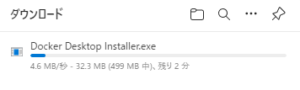
When you click, the download of Docker will start automatically.
It’s nearly 500MB, so wait a bit.

Once the download is finished, launch the installer.
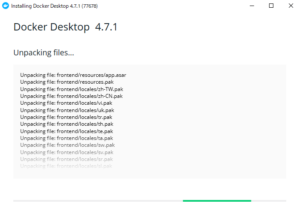
The installation screen will run automatically, so wait.
About 5 to 10 minutes. It may take longer depending on your computer’s performance, so please wait patiently.

↑ The image is old, so the version is old. When installing, the latest version is fine.
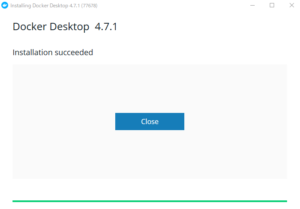
When it finishes, a screen like this will appear.
Press Close.

Docker will start after a while.
(If it doesn’t start, click the Docker icon created on the desktop to launch it.)
A screen asking you to agree to the terms of service will appear.
If there are no issues, check the box in the bottom right and click ACCEPT.

The screen below ↓ will be displayed.
You will be asked if you want to test if Docker works with a tutorial.
You don’t have to do the tutorial.
If you want to skip, click Skip tutorial.

This completes the Docker installation.
Now return to the Pi Node app.

When you return to the previous Pi Node screen, the display in the Install Docker section should have changed.
This screen indicates that the installation was successful.

Port Forwarding Test

Once you have confirmed the successful installation of Docker, perform the port forwarding test located immediately below.

Screen Translation“Pi nodes communicate with each other via the following TCP/IP ports:31400, 31401, 31402, 31403, 3140431405, 31406, 31407, 31408, 31409Please open these ports in your firewall and, if necessary, redirect the above ports from your router to this computer. A dialog about Docker may appear in the Windows Firewall. If so, you must click [Allow access]. In the future, we will strive to make this step easier.”

This should go smoothly because you already performed the port forwarding test in the first step.
Click CHECK NOW to check if port forwarding is working.
If the three checkmarks on the left are checked, it is successful.
If successful, click Continue in the bottom right.

Node Operation Screen

↓ This screen is the Node operation screen.
Simply keeping this state will keep the Node running.

For Select Environment, please select testnet2.
testnet2 allows you to operate the Node in a new, high-performance, and high-speed environment.
testnet1 is for operating the Node in the old environment. It is expected that eventually only testnet2 will be available.

Screen TranslationTurn on NodeYou can now run the node version including the blockchain. Turning on the switch below will cause your computer to start running the Docker container that executes the consensus algorithm and monitor the Pi Testnet. It will remain on until you turn off the switch. Turning off the switch will stop your computer from running the blockchain. You are a node candidate. We have not yet selected Super Nodes or nodes to participate in the Pi Testnet that need to pass KYC. We will select them soon. Your computer is running the blockchainLocal block number: 194445Latest block number: 194445

The switch displayed here is the part colored green.
Be sure to turn on the switch. Also, there is one more thing to switch on. Please read the part marked (Important) in the Troubleshooting section in the next explanation.

The Local block number is the number of ledgers on your PC at the top. The number at the bottom is the number of ledgers existing on the network. Normally, the number of ledgers at the top and bottom will match. When you first start operating, you need to download the latest ledger to your PC, so it will start from 0. It will automatically become the latest state, so please wait without worrying.

About Troubleshooting Screen Settings

Click Troubleshooting in the bottom right to open the Node operation information.

You can see the current network connection status.
The Node will still operate even if the Troubleshooting screen is displayed, so it is fine to have either screen open.

I have picked up the important information displayed here.
STATE
Whether the current ledger is kept up to date.
If it is up to date, it will display Synced!

Other displays
・joining scp
→ State of searching for other nodes
This notation appears when the Node is restarted or when block synchronization is delayed.
If this notation continues for a long time, synchronization is delayed, so it might be better to restart Docker.

・catching up
→ State of downloading when a download destination node is found.

・synchronized
→ Writing your downloaded block information to the database.

Latest block
The time when the ledger was last updated is displayed.
If it’s a few seconds ago, there’s no problem. Occasionally, it may display several hours, in which case it’s a good idea to restart your PC.

Supporting other nodes
Whether your PC is contributing to updating other ledgers.
If Yes, no problem. If No, please restart your PC.

(Important)
Run the optional blockchain API service
Pressing the switch here activates the API service function. This contributes to ledger distribution using your PC’s CPU performance. Turning this on allows you to receive more mining bonuses, but it will use more CPU, which can increase electricity costs or bring low-performance computers close to full load. If you are running the Node for the purpose of mining bonuses, checking this is essential. If this causes issues, please turn it off. You will still receive a bonus when it’s off, but it will be smaller.

How to Deal with Delayed Block Synchronization

When running the Node, block synchronization may occasionally be delayed.
You can recognize that synchronization is delayed when the numbers for Local block number and Latest block number do not match.
Also, by looking at Latest block in Troubleshooting, you can grasp the time when synchronization is not occurring.
The larger the number of unsynchronized blocks, the more delayed it is, so you need to take action. (It often fixes itself, but the administrator takes manual action if it is delayed by more than 60 minutes.)

Manual Action ①: Restart the Pi container in Docker.
In most cases, this will fix it.
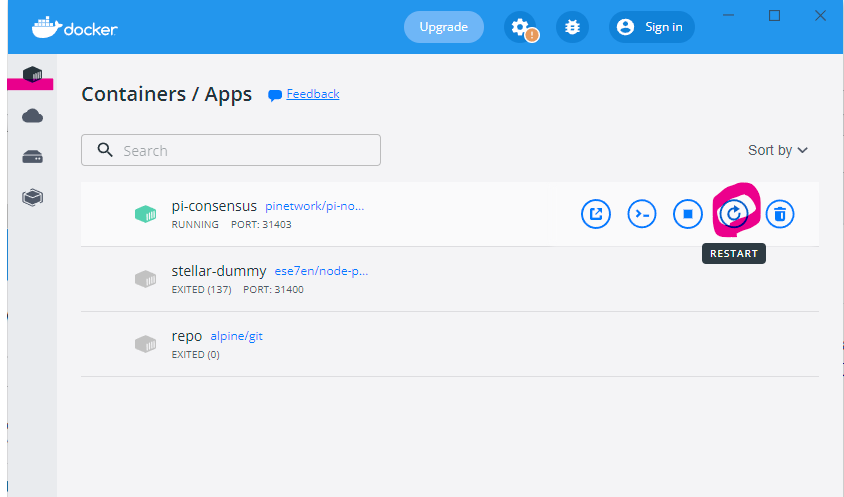
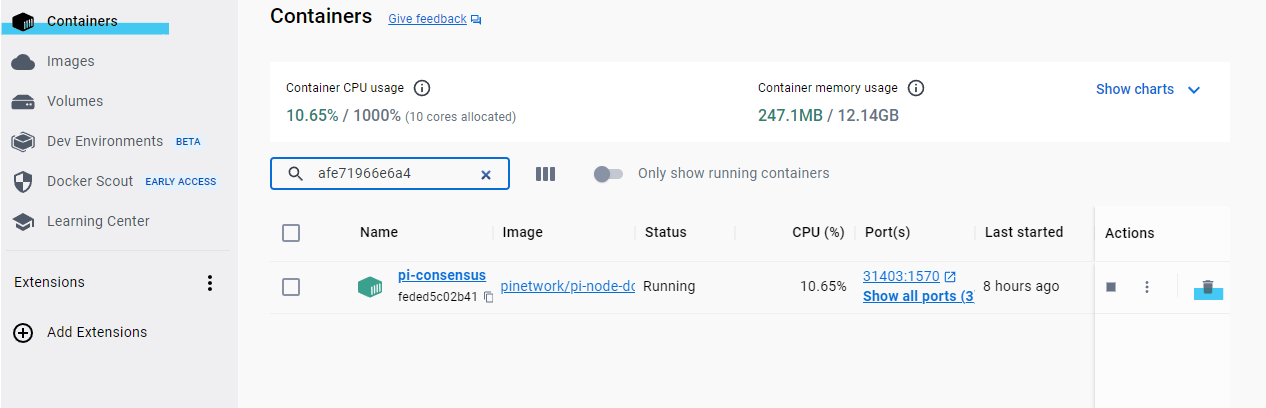
Launch the Docker screen and open Containers/app in the top left.
Move the mouse cursor over pi-consensus within it, and a menu will appear.
Press the red-boxed restart button within that menu.
Then, the Pi Node will automatically restart and synchronization will begin.
Synchronization will not complete immediately after restarting, so it’s a good idea to wait for about 10 minutes.

Manual Action ②: Restart the PC.
If the issue is not resolved with Action ①, the delay may be caused by something other than the Pi Node app.
After confirming that there are no network-related issues, try restarting your computer.

Above is the explanation of how to operate the Pi Node.
It turned out to be a long article, but I wrote it hoping it would help everyone with their operation.
Port forwarding is the most difficult part, but once you set it up, your PC will operate automatically, so please try your best to set it up.

How to Update the Node Version

The Pi Node was updated on March 15, 2024.
I have been running the Node for two years, and there have been several updates.
(It went from 0.4.5 → 0.4.9 → 0.4.10 → 0.4.11 → 0.5.0.)

A feature for automatic version updates was implemented in the Pi Node from the previous version.
Since version updates are done automatically, you will have the new version without even knowing it.
Installation files for older versions are basically not distributed, so you can continue operating without worrying by downloading from the official website.

Many reports of operational issues have emerged with version 0.5.0. Basically, I think fixes will be implemented if you wait, but if you are concerned, please refer to the following article.

Pi Node 0.5.0 Update: Operational Issues and Solutions
https://pinetwork.masters-all.com/node-050-troubleshooting-guide/

The Node software is updated automatically, but Docker is not updated automatically. If Node operation is unstable, you may be advised to update Docker in the Pi chat or community. In that case, please follow the steps below.
(The administrator’s Docker environment is 4.30.0 and is running the latest version of Pi Node.)

The update procedure is simple.

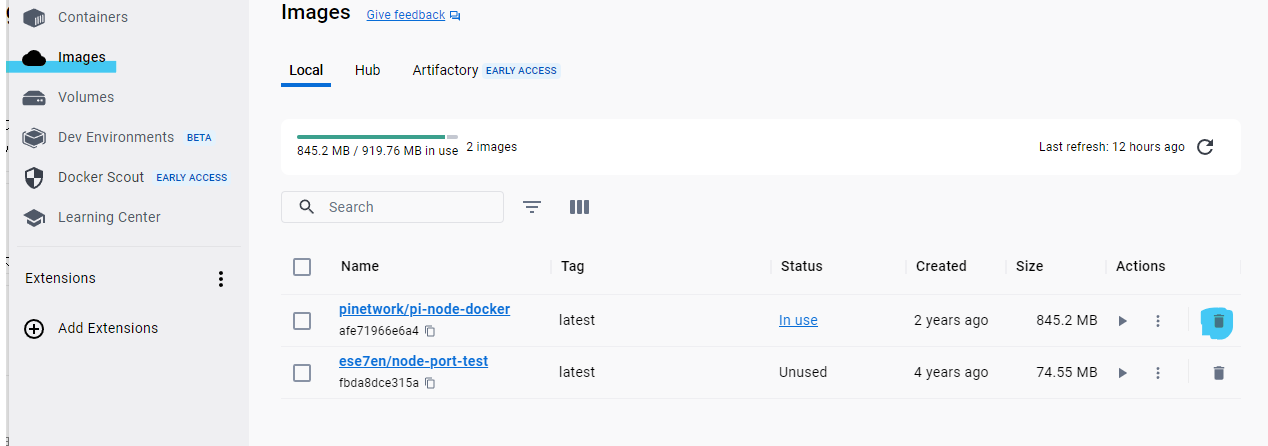
③ Delete the pinetwork data in Containers and images from the Docker menu. (It will be regenerated immediately even if you delete it.)

Containers
You can delete by pressing the trash can icon on the right. Although not in the screenshot, it is said that Stellar Dummy can also be deleted.

Next, delete the data in images.

You will be asked for confirmation when deleting this.
Select Delete forever as is.

If the screen below ↓ appears, try closing the software completely or deleting Containers first before executing.

Once both are deleted, close Docker as well.

④ Launch the downloaded installation file and wait for a while.
After the version processing is done automatically, the software will launch automatically.

⑤ Launch Docker as well.
After that, just launch Pi Node as usual, and it will be in normal operation.

About Node Bonus

Addendum 2025/1/1
Even when running the Node, the phenomenon of Node bonuses not being awarded has occurred for the past month. Although the bonus is not being added, a message is displayed indicating that the bonus will be awarded retroactively, so it is recommended to continue running the Node.

Message Display Location
When you press the bell icon on the Pi Node, the following message is displayed.

Translation
Addressing Node Reward Issues

Release Date: December 12, 2024

We are currently addressing an issue where some node rewards are displayed as zero. Even if the reward is zero, statistical data regarding the node’s operation status is still being recorded.Furthermore, we aim to distribute past rewards retroactively.

Bonus: Node Bonus Calculation – What is CPU Factor?

I will describe this as a reference for choosing a CPU to aim for higher rewards. There is no specific recommendation for which CPU is best, so please view this for reference.
According to the Pi Network white paper, the “CPU Factor,” which is part of the node reward, is determined based on the computing power (CPU performance) provided by the node. By using a high-performance CPU, this factor increases, resulting in higher rewards. This is considered a design to incentivize node operators who provide better hardware to enhance the network’s processing power and stability.
However, the white paper and official announcements do not explicitly state detailed values or criteria regarding “how specific CPU specs affect the factor.” Therefore, the explanation below is based on general CPU performance trends and factors that can be reasonably inferred in the context of Pi Network.

Factors That May Affect CPU Factor

Since the CPU factor is said to depend on “computing power,” the following CPU characteristics are thought to have an impact:
  1. Clock Speed
    • Clock speed (GHz) indicates the number of instruction cycles a CPU can execute per second. For example, a 5.0GHz CPU has higher computing power than a 3.0GHz CPU, which may result in a larger CPU factor.
    • Trend: CPUs with high clock speeds (e.g., Intel Core i9-13900K or AMD Ryzen 9 7950X) are advantageous.
  2. Number of Cores
    • Multi-core CPUs can process multiple tasks simultaneously. If the Pi Network node utilizes parallel processing, a higher core count can improve computing power and potentially have a positive impact on the factor.
    • Trend: 8 cores or more (e.g., AMD Ryzen 7 series or Intel Core i7/i9 series) are advantageous.
  3. Number of Threads
    • CPUs that can process multiple threads per core through Hyper-Threading (Intel) or Simultaneous Multi-Threading (AMD) improve efficiency. If this helps with network transaction validation, it may affect the factor.
    • Trend: 16 threads or more (e.g., Ryzen 9 5950X or Core i9-12900K) are advantageous.
  4. Cache Size
    • CPU cache (L1, L2, L3) allows for fast access to frequently used data. A larger cache can improve processing speed and potentially contribute to computing power.
    • Trend: Large cache capacity (20MB or more, e.g., Ryzen 7000 series or Intel Alder Lake/Raptor Lake) is advantageous.
  5. Architecture Efficiency
    • New architectures (e.g., Intel’s Alder Lake/Raptor Lake, AMD’s Zen 4) offer higher performance at the same clock speed compared to older generations (e.g., Intel Skylake, AMD Zen 1).
    • Trend: Latest generation CPUs (models from 2023 onwards) are advantageous.
  6. Benchmark Scores
    • Higher scores in benchmarks that comprehensively evaluate CPU performance (e.g., Cinebench, PassMark, Geekbench) may lead Pi Network to judge the CPU as “high-performance.”
    • Trend: A PassMark score of 10,000 or more (e.g., Ryzen 5 5600X or higher, Core i5-12600K or higher) is a guideline.

What Specific CPUs Are Advantageous?

Since the specific requirements and algorithms of the Pi Network node software (Pi Node) are not publicly disclosed, it is unclear how much computing power is required. However, considering the requirements of typical blockchain nodes (transaction validation, data processing, network communication), CPUs like the following are likely considered “high-performance” and tend to increase the CPU factor:
Examples of Recommended CPUs (as of 2025)
  1. Entry Level (Moderate Factor)
    • Examples: AMD Ryzen 5 5600X, Intel Core i5-12400F
    • Specs: 6 cores 12 threads, 3.7-4.6GHz, PassMark score approx. 20,000
    • Reason: High cost-performance and sufficient performance for basic node operation.
  2. Mid-Range (Expected High Factor)
    • Examples: AMD Ryzen 7 5800X, Intel Core i7-12700K
    • Specs: 8 cores 16 threads, 3.8-5.0GHz, PassMark score approx. 30,000
    • Reason: Good balance of core count and clock speed, capable of handling medium-scale computational load.
  3. High-End (Aiming for Maximum Factor)
    • Examples: AMD Ryzen 9 7950X, Intel Core i9-13900K
    • Specs: 16 cores 32 threads, 4.5-5.8GHz, PassMark score approx. 50,000+
    • Reason: Top-class performance, capable of handling large-scale transaction processing and network load.

Possibility of Server CPUs

If Pi Network emphasizes the stability of the decentralized network, server CPUs (e.g., AMD EPYC 7003 series, Intel Xeon Scalable) may also be candidates. These are characterized by a high core count (32 cores or more) and stability, which may be advantageous especially if aiming for a Super Node.
Trends and Notes
  • Trend: To maximize the CPU factor, CPUs with “high clock speed,” “multi-core/multi-thread,” and “latest architecture” are advantageous. Models from 2022 onwards (AMD Zen 4, Intel 12th/13th Gen) are particularly recommended.
  • Cost and Efficiency: High-end CPUs may increase rewards, but you need to consider the balance with electricity costs and initial investment. Since it is unclear how much Pi Network rewards are proportional to CPU performance, excessive investment carries risks.
  • Lack of Official Information: As of now (March 7, 2025), Pi Network has not published a specific formula for calculating the CPU factor (e.g., factor multiplier per score). The actual impact depends on Node software updates and Mainnet operation status.

Other

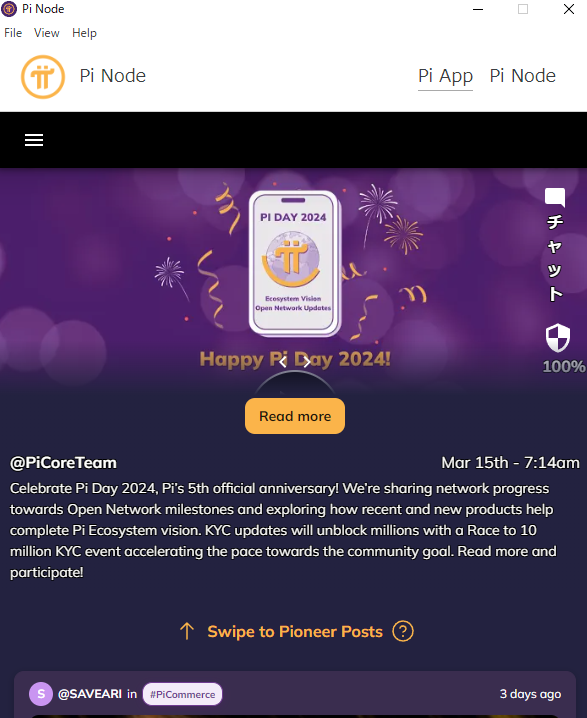
The home screen may be displayed as shown below, and the Node button may become unclickable. In that case, pressing F11 on the keyboard will switch to full screen display. This will make the Node button clickable. To return to the screen below, press the F11 button again.

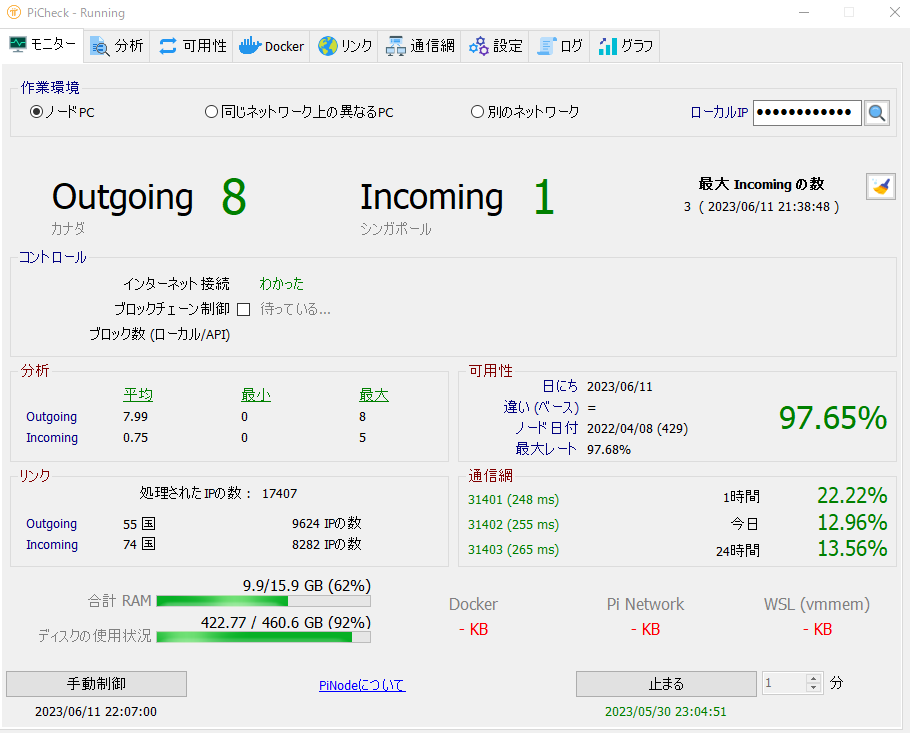
I wrote an article about the picheck software that helps with Pi Node operation.
If you like, please refer to this as well. It can help you detect Pi Node operation issues early.
https://pinetwork.masters-all.com/picheck/