Pi Browser」タグアーカイブ

Pi Network Announces Secure Multisig Wallet: How it Works and How to Use It

The Pi Network multisig wallet is a wallet that allows Pioneers to delegate their Pi to apps created in the Pi Browser.¹ This allows Pioneers to support the development of apps that increase the value of Pi, while retaining control over their own Pi.¹

The Pi Network multisig wallet can only be used within the Pi Browser.² The Pi Browser is a dedicated browser that provides access to the Pi Network Testnet Ecosystem.³ The Testnet Ecosystem is a place where Pi Network developers and users can try out various apps and utilities they have created.³

To use the Pi Network multisig wallet, follow these steps:⁴

– First, download the Pi Network app and become a Pioneer.
– Next, open the Pi Browser and access the Testnet Ecosystem.
– Then, select the app you want to use the multisig wallet with.
– After that, confirm the number of required keys (M) and the number of generated keys (N) specified by the app developer.
– Next, enter the amount of Pi you want to delegate to the app from your Pi balance.
– Finally, sign with M private keys. For example, in the case of “2 of 3”, sign with 2 out of 3 private keys.
– Once the signature is verified as correct, the Pi transfer will be executed. The transferred Pi will move to the multisig address managed by the app developer.

These are the steps for using the Pi Network multisig wallet. The multisig wallet is a secure technology that brings new possibilities to Pi Network Mainnet apps.


What is a Multisig Wallet?


A multisig wallet is a cryptocurrency wallet that requires multiple signatures. Specifically, it is a type of wallet that requires multiple signatures to approve and execute a transaction.


A cryptocurrency wallet is a tool for storing and managing cryptocurrency. A wallet has a “private key” that only you know and a “public key” that you can share with others.² From the public key, an “address” is generated in a human-readable format. The address is used for sending cryptocurrency and checking balances.


Cryptocurrency transactions are recorded on a distributed ledger called a blockchain. The blockchain records information about how much balance is in a wallet address. To move the balance, the private key from which the address was derived is required. When moving a balance, transaction data is created and electronically signed using the private key. Whether the transaction data is signed with the private key from which the address was derived can be verified by a third party, and this verification process is mining.


Multisig wallets use multiple private keys. Data cannot be signed unless the correct keys are present, so the more keys there are, the more secure it is. Having multiple keys reduces the risk of theft or loss compared to having only one key.


Multisig wallets are usually expressed in the “M-of-N” format. For example, if two out of three public keys are used to decrypt a signature, it is written as “2 of 3”. There is no fixed number of keys; there can also be “3 of 4”, etc. However, setting it to “2 of 3” is common.


How Does a Multisig Wallet Work?


A multisig wallet works according to the following steps:


First, when creating a multisig wallet, determine the number of required keys (M) and the number of generated keys (N).


Next, generate N private and public keys. From these public keys, a multisig address is created.


Then, deposit cryptocurrency into the multisig wallet. The deposited cryptocurrency is linked to the multisig address.


When withdrawing cryptocurrency, sign with M private keys. For example, in the case of “2 of 3”, sign with 2 out of 3 private keys.


Once the signature is verified as correct, the cryptocurrency transfer will be executed.


References


  1. (1) Let’s create a π wallet with Pi Browser! Introducing setup methods and usage …. https://raripop.com/how-to-use-the-piwallet/.
    (2) What is a Pi Wallet? Pi Network Wallet …. https://www.btcc.com/ja-JP/academy/crypto-basics/what-is-a-pi-network-wallet-a-thorough-explanation-of-how-to-create-one.
    (3) What is Multisig? Benefits, drawbacks, mechanism, support …. https://bing.com/search?q=%e3%83%91%e3%82%a4%e3%83%8d%e3%83%83%e3%83%88%e3%83%af%e3%83%bc%e3%82%af+%e3%83%9e%e3%83%ab%e3%83%81%e3%82%b7%e3%82%b0%e3%82%a6%e3%82%a9%e3%83%ac%e3%83%83%e3%83%88+%e4%bd%bf%e3%81%84%e6%96%b9.
    (4) What is Multisig? Benefits, drawbacks, mechanism, support …. https://bap-software.net/knowledge/multisig/.
    (5) Introduction to Pi Browser and How to Create a Pi Wallet – Earn Fun Side Income …. https://ysfx5.com/piwallet-test/.
Pi Network’s Staked DMs: What They Are and How to Send Messages via Pi Browser

Staked DMs is one of the Pi-integrated Web3 solutions provided by Pi Network, a feature that allows you to send messages directly on the Pi Browser.¹ We will explain it in an easy-to-understand way for cryptocurrency beginners.

Pi Network is a social cryptocurrency that can be easily mined with a smartphone.² Pi Network is preparing for the launch of its mainnet, and its price is expected to be announced in 2023.³

Pi Browser is a dedicated browser that Pi Network users can use. With Pi Browser, you can access the Pi Network testnet ecosystem. The testnet ecosystem is a place where you can try out various apps and utilities created by Pi Network developers and users.

Web3 is a decentralized internet. In Web3, users can interact directly with each other without relying on centralized services or platforms. Technologies such as blockchain and cryptocurrency play an important role in Web3.

Staked DMs is a feature that allows you to enjoy the benefits of Web3 on the Pi Browser. With Staked DMs, Pioneers (Pi Network users) can safely send messages to other Pioneers on the Pi Browser.¹ Also, with Staked DMs, you can use Pi cryptocurrency to send messages.¹ This allows Pioneers to increase the value of Pi and experience its utility.¹

How to use

Staked DMs is available in the Pi Browser testnet ecosystem.¹ To use Staked DMs, you first need to download the Pi Network app and become a Pioneer.² Next, open the Pi Browser and access the testnet ecosystem. Then, tap the Staked DMs icon and enter the name of the Pioneer you want to send a message to.¹ After that, simply enter your message and press the send button.¹

The above is a detailed explanation of Staked DMs. Staked DMs is one of Pi Network’s innovative features that allows Pioneers to send messages on the Pi Browser. Why not join the Pi Network community using Staked DMs?

  • ¹: [Staked DMs: A Pi-integrated Web3 solution for direct messaging on Pi Browser](^3^)
  • ²: [Pi Network]
  • ³: [PINetwork (Pi Network) Price and Forecast to be Announced in One Month!]
  • : [Pi Browser – Apps on Google Play]
  • : [Pi Network Testnet Ecosystem]
  • : [What is Web 3.0? Explaining the Features and Benefits of the Decentralized Internet | Coincheck]

Sources

  • (1) Meaning, usage, and pronunciation of the English word “stake” | Weblio English-Japanese Dictionary. https://ejje.weblio.jp/content/stake.
  • (2) What is AWS DMS? Flow and benefits of migrating databases. https://onetech.jp/blog/what-is-aws-dms-14344.
  • (3) What is a stakeholder? Explaining the meaning from English…. https://allabout.co.jp/gm/gc/59414/.
  • (4) What is a stakeholder? Explaining the meaning from English…. https://allabout.jp/gm/gc/59414/.

What are Staked DMs in Pi Network? How to Send Messages Using the Pi Browser

Staked DMs is one of the Pi-integrated Web3 solutions provided by Pi Network, a feature that allows direct messaging on the Pi Browser. ¹ We will explain it in an easy-to-understand way for cryptocurrency beginners.

Pi Network is a social cryptocurrency that can be easily mined with a smartphone. ² Pi Network is preparing for the mainnet launch, and the price is expected to be announced in 2023. ³

Pi Browser is a dedicated browser that Pi Network users can use. With Pi Browser, you can access the Pi Network Testnet Ecosystem. The Testnet Ecosystem is a place where you can try out various apps and utilities created by Pi Network developers and users.

Web3 is a decentralized internet. In Web3, users can interact directly with each other without relying on centralized services or platforms. Technologies such as blockchain and cryptocurrency play an important role in Web3.

Staked DMs is a feature that allows you to enjoy the benefits of Web3 on the Pi Browser. With Staked DMs, Pioneers (Pi Network users) can safely send messages to other Pioneers on the Pi Browser. ¹ Also, with Staked DMs, you can use Pi cryptocurrency to send messages. ¹ This allows Pioneers to increase the value of Pi and experience its utility. ¹

How to Use

Staked DMs is available in the Pi Browser Testnet Ecosystem. ¹ To use Staked DMs, you first need to download the Pi Network app and become a Pioneer. ² Next, open the Pi Browser and access the Testnet Ecosystem. Then, tap the Staked DMs icon and enter the name of the Pioneer you want to send a message to. ¹ After that, just enter your message and tap the send button. ¹

This concludes the detailed explanation of Staked DMs. Staked DMs is one of Pi Network’s innovative features, allowing Pioneers to send messages to each other on the Pi Browser. Why not use Staked DMs to join the Pi Network community?

¹: [Staked DMs: A Pi-integrated Web3 solution for direct messaging on Pi Browser](^3^)
²: [Pi Network]
³: [PINetwork (Pi Network) Price and Prediction to be Announced in One Month!]
: [Pi Browser – Apps on Google Play]
: [Pi Network Testnet Ecosystem]
: [What is Web 3.0? Explaining the Features and Benefits of Decentralized Internet | Coincheck]

Sources
(1) Meaning, Usage, and Reading of the English Word “stake” | Weblio English-Japanese Dictionary. https://ejje.weblio.jp/content/stake.
(2) What is AWS DMS? Database Migration Flow and Benefits. https://onetech.jp/blog/what-is-aws-dms-14344.
(3) What is a Stakeholder? Explaining the Meaning from English …. https://allabout.co.jp/gm/gc/59414/.
(4) What is a Stakeholder? Explaining the Meaning from English …. https://allabout.co.jp/gm/gc/59414/.

How to Create a Pi Wallet

Steps

Before accessing your Pi Wallet, please download the new “Pi Browser” app from the iOS App Store or Android Play Store. Make sure to download the “Pi Browser” developed by Pi Community Company. To download the correct app, you can also follow the steps below later.

  1. Open the Pi Network mining app (the Pi mining app you normally use).
  2. Go to the menu ☰ in the top left and select “Pi Browser”.
  3. Read the instructions and tap the “SIGN IN TO PI BROWSER” button.
  4. If Pi Browser is installed, it will automatically open and sign you in. If not, you will be taken to the app store to install and open Pi Browser.
  5. For some Android users, the link may open in your phone’s default browser instead of Pi Browser. In that case, you will need to manually open the Pi Browser app.
  6. The easiest way to sign in to Pi-related apps on Pi Browser is by using the mining app as instructed in the last step. However, you can also sign in directly to Pi Browser independently. In that case, type mine.pi in the Pi Browser URL bar, select “Use other sign-in methods”, and enter your Pi Network credentials.
  7. Once you are signed in to Pi Browser, you will see a welcome page with a “wallet.pi” icon.
  8. Click on the “wallet.pi” icon.
  9. Click on “GENERATE WALLET”.
  10. Please save your passphrase in a safe place. You can make it accessible only on your smartphone via fingerprint authentication for Android or Touch ID/Face ID for iOS, or copy and save it in a secret safe place. The passphrase is like a long string “password” that serves as the private key for your crypto wallet. If you lose this key, you will lose access to your wallet and will not be able to recover it. Therefore, do not lose your passphrase and make sure no one else can access it.
  11. If you did not set up biometric authentication when creating your wallet, you will need to use “UNLOCK WITH PASSPHRASE” to set up biometric login (e.g., fingerprint or facial recognition).

How to Use Your Pi Wallet

Once you log in to your Pi Wallet, you will see the balance page. A new wallet contains 100 Test-Pi. Test-Pi is not real Pi, has no value, and is for testing purposes only.

  • To send Test-Pi, tap the orange “SEND” button. On the Test-Pi sending page,
    1. In the “Recipient Address” field, enter the wallet address of the person you want to send Test-Pi to. (A new feature will be added in the future that allows you to send Test-Pi using only the username)
    2. In the “Amount” field, enter the amount of Test-Pi you want to send.
    3. The “Fee” field is set to the current minimum fee on the Pi Testnet, 0.01 Test-Pi, by default. You can increase the fee if you want to prioritize your transaction during high traffic.

Note: Your wallet balance cannot go below 20 Test-Pi. Transactions that would result in a balance less than 20 Test-Pi will fail. Instructions on how to request additional Test-Pi are located below the “Receive” button.

  • Tapping the “History” link will show you the history of all incoming and outgoing transactions from your wallet. The same transaction history is also recorded on the Pi Testnet blockchain.
  • Tapping the “Settings” link will allow you to associate a biometric authentication login solution with your wallet (if you haven’t already). E.g., you can use fingerprint authentication (Android) or Touch ID/Face ID (iOS) to access your passphrase and log in to your wallet.
  • To find your passphrase, tap the “SHOW” button. Do not share your passphrase with anyone and keep it secret.
  • To see your wallet address, click the “Receive” button.
    Currently, you can copy and share your wallet address. For example, you can paste it into a text or email message and send it. In the future, a feature will be added that allows you to share your wallet address via social media, email, etc., using the “SHARE” button. Since the blockchain is public, revealing your wallet address does not compromise the security of your wallet.
  • If you have sent all your Test-Pi and want to continue testing transactions, you can tap the link at the bottom of the Send or Receive page to request an additional 100 Test-Pi. This option is available every 48 hours and is only valid if your balance is less than 50 Test-Pi.

How to Play Pi Games on PiNetwork

You can now play Pi games through the Pi Browser.
Using the Pi Browser gives you a Utility usage bonus, making it a popular content.
The game is a 3-match puzzle game.
You can get coins just by playing the game, so if you have time, why not give it a try?

How to Start the Game

① Launch the Pi Browser.

② Enter the following URL in the browser’s URL bar.

https://pi-game.app/

You can also copy and paste the above.

If you launch it from a browser other than the Pi Browser, it will just keep loading forever and won’t start. Be sure to launch it via the Pi Browser.

↑ This is the screen that appears when accessed on a PC.

③ The game screen will load automatically.
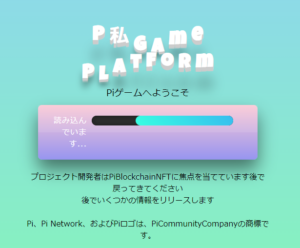
When the correct URL is entered, a screen like this will be displayed before the game starts.

When translated into Japanese, it looks like this.
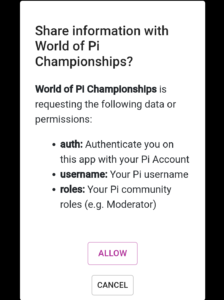
Share information with WorldofPiChampionships?
WorldofPiChampionships is requesting the following data or permissions:
·auth: Your Pi account
·Authenticate you in this app with your username.
Pi Username · Role: Pi Community Role (e.g., Moderator)

If there are no particular issues, please tap ALLOW.

Next, this screen will appear.

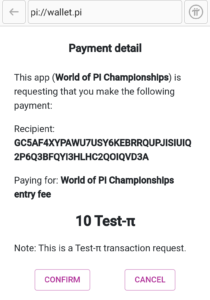
Payment Details This app (WorldofPiChampionships) is requesting the following payment
Recipient: GC5AF4XYPAWU7USY6KEBRRQUPJISIUIQ2P603BFQY13HLHC2Q01QVD3A Payment: World of Pi Championship Participation Fee 10Test-T
Note: This is a Test-tt transaction request. Confirmation of cancellation

This is the screen asking if you want to play using 10 Test Pi.
Since it’s Test Pi, it’s Pi that you get for free.
You won’t lose anything, so please select COMFIRM at the bottom left.
(If Pi becomes widely circulated, I wonder if we’ll be playing with real currency?)

④ How to Play the Game
When the screen below is displayed, tap it.

↓ When the game loads, it becomes the stage selection screen.
Nearly 200 stages are available, so clearing them all requires considerable effort. The flow is to start from Stage 1 and gradually challenge higher-level stages.

How it looks while playing

I tried recording how it looks playing Stage 7 as a test.
Sorry, I’m not very good.

When you match three of the same flags, the blocks disappear, and new blocks fall from above. Sometimes items appear that can clear multiple blocks at once, so use them effectively to clear the game. The difficulty is high. There are stages that are difficult to clear even with a low stage number. The blocks that fall from above are random, so there is also an element of luck. I’ve seen comments saying that if you have bad luck, it’s hard to clear the game.

How much Utility usage bonus can you get?

When I, the administrator, played this game, I was able to get about 0.2 to 0.3 Pi. You might get more depending on how much you play. However, you won’t get that much just by playing this game, so trying to increase your Pi significantly by making this your main focus probably isn’t worth the effort. It’s best to think of it as just a game and be happy with whatever you get. It seems you can get a bonus if you rank high, but there are rivals all over the world, so latecomers might be at a disadvantage. If you are confident in your skills, it might be worth trying for the rankings.