Introducing methods to prevent the situation where your Node software stops running for days due to unexpected issues, even after you’ve finally set up Node operation.
Perform Windows Update at Your Preferred Timing
Sometimes, Windows Update causes your PC to restart, leading to a situation where the Node software is not running. The timing for updates is fixed, the second Wednesday of every month is the day when updates are regularly distributed. It’s a good idea to keep an eye on your PC around this time, expecting Windows Update to happen automatically. Also, you can perform the update manually at any time.
Click the Windows icon in the bottom left → Gear icon → Update & Security.
Under the Windows Update section, click ‘Pause updates for 7 days’. The screen display will change to ‘Pause updates for another 7 days’. Clicking this multiple times will extend the date.
↓Click the blue part here
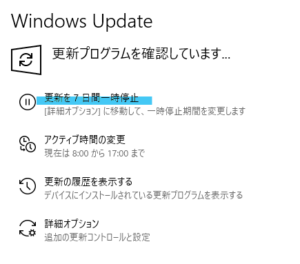
↓The display changes to show that it will resume on ○○, like this.

↓Clicking further extends the date.

If you want to update at your preferred timing, please click ‘Resume updates’.
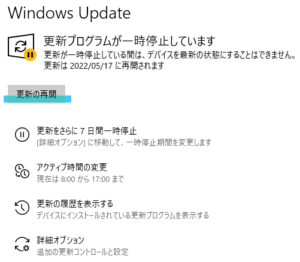
Clicking ‘Resume updates’ will automatically check for updates.
If there are updates, the UPDATE process will be performed automatically.
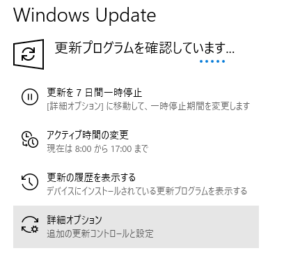
If a restart occurs during the UPDATE process here, please restart and launch the Node app again.
Postponing Windows Update increases security risks, so please use this method to perform the UPDATE process at your preferred timing starting from the second Wednesday.
Set Pi Node and Docker to Launch Automatically When PC Starts
Even if you restart, it’s meaningless if you forget to launch the apps. Set both apps to launch automatically when the PC restarts. (You will still need to perform operations to reach the Node screen after they launch)
Startup Settings
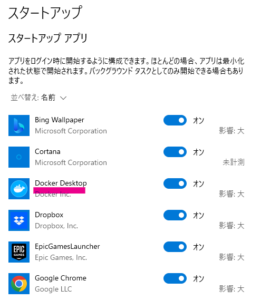
Click the Windows icon in the bottom left, and type Startup apps. ‘Startup apps’ will appear in the search results.
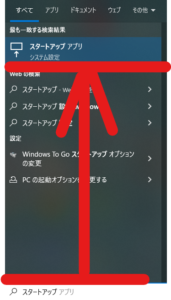
Opening this settings screen will show a list of apps installed on your computer.
Look for Docker Desktop and Pi Network in this list.
Once found, as shown in the image below, turn the switch ON. When it’s ON, the apps will launch automatically from the next restart. Once they launch, click the Pi Network app to start the Node.

Stabilize Your Internet Connection
Even if you open ports, it’s meaningless if your internet connection is not stable.
Review the network connection around your PC and try to set up a stable connection.
Connect via Wired LAN Instead of Wireless LAN
The most stable network connection is one where the PC is connected via wired LAN. There might be physical limitations, but if you can switch, connecting via wired LAN is recommended. Unlike wireless LAN, you can maintain the network connection without being affected by surrounding radio waves, allowing for stable operation. If you already have a wired LAN environment and want to be more particular, pay attention to the LAN cable as well. Using an old LAN cable might result in slow communication speed due to an outdated standard.
Check the cable standard printed on the LAN cable.
Cables marked as CAT.5 are old and slow.
Newer standards include CAT.5E CAT.6 CAT.7, but CAT.5E is sufficient for home internet connections. If the cable included with your provider contract is this old standard, it’s a good idea to replace it with a new one.
If you mix old and new standard LAN cables, the speed will decrease to match the older one, so if you are replacing cables, unify all LAN cables connected to network devices.
Stabilize Your Wireless LAN
Even if you have to use a wireless LAN connection due to physical constraints, there are ways to stabilize the network.
First, Check Signal Strength
When connected via wireless LAN, unstable signal strength can lead to decreased network speed.
Check if the location where your PC is set up receives a good signal.
When connected to wireless LAN, a mark like this is displayed in the bottom right of the Windows desktop. If the signal is weak, the white bars will decrease one by one. If it’s stable, it will be in the state shown by the red circle.

This is a simple way to check, but if you want to investigate thoroughly, there is a smartphone app called WiFi Analyzer. You can check the wireless LAN signal status in your room. If the display above is stable, there should be no problem, but if you are concerned, please check it.
This article is helpful.
https://koneta.nifty.com/koneta_detail/1141008011632_1.htm#:~:text=%E3%80%8CWi%2DFi%20Analyzer%EF%BC%88%E3%82%A2%E3%83%8A%E3%83%A9%E3%82%A4%E3%82%B6%E3%83%BC,%E3%81%AB%E6%8E%A5%E7%B6%9接続%E3%81%97%E3%81%A6%E3%81%84%E3%81%BE%E3%81%99%E3%80%82
How to Deal with Unstable Signal
If the signal strength icon is not stable, there are ways to deal with it.
① Check for Signal Interference
Check if there is anything nearby that interferes with the wireless LAN signal.
Sometimes, signal interference occurs because similar radio waves are being transmitted nearby, worsening the wireless LAN signal status.
Causes of Interference
Microwave Oven
→The signal becomes extremely poor when the microwave oven is in use.
Countermeasures
Change the location of the microwave oven. Change the wireless LAN frequency.
Other Wireless LAN Signals, Wireless Devices (Cordless Phones, Bluetooth Devices, etc.)
→In apartment buildings, many wireless LAN and other signals are being transmitted. It is difficult to identify what is causing the interference.
Countermeasures
Use the Wi-Fi Analyzer introduced above to check the transmitted radio frequencies. Find unused frequencies and change to them.