If you are operating a Pi Node and cannot keep the block status up-to-date or it is not running stably, it is recommended to update Docker to the latest version.
In my environment, I initially operated with version 4.71, but after experiencing synchronization delays several times a day and obtaining information that a newer version was available, I updated it and was able to achieve stable operation.
Currently, even without any operation for 24 hours, it is always synchronizing the latest blocks.
I believe there is no need to force an update if it is running stably, but if you are concerned about security or feel uneasy without the latest version, updating is a good idea. Also, since node operation will be interrupted during the update, if you are concerned, it is recommended to do it after completing today’s mining. Although it was running stably, I will update Docker for the sake of this article.
In the procedure below, I performed the Docker update while the Pi Node was still running.
The correct procedure might be to stop it before updating.
How to Update Docker
Open the Docker screen.
Click the gear icon displayed in the upper right corner.
If the gear icon has an exclamation mark, it is one indicator that an update is available.
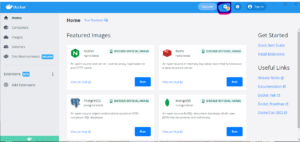
The screen will switch and a menu will be displayed.
Click “Software Updates” on the left side.
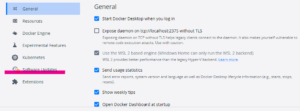
The update details will be displayed in English.
The current version, the latest version number, and the update details are displayed.
In the image below,
Current version 4.8.1(78998)
Latest version 4.8.2(79419)
It is shown as.
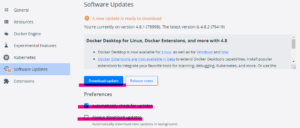
If there are no issues, click “Download update”.
The checkbox below is for,
Automatically check for updates
↑ Automatically check for the latest version
Always download updates
↑ Automatically update to the latest version
Only the top one is checked.
I haven’t checked the bottom one because I would be troubled if the node stopped or became unstable due to an update, so I want to update at an arbitrary timing after confirming that the version is stable.
After pressing the download button, the display changes as shown below.
Downloading software.

After the download (around 1 minute) is finished, the display changes to the following.

Pressing this button starts the update process.
The screen turns white…
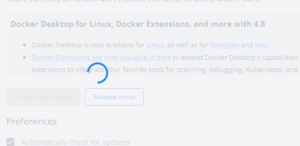
A screen asking for program changes is displayed, so
Click the “Yes” button.
The update process starts automatically.
The version displayed after the update earlier was 4.8.2, but it seems the update content was 4.9.0. (Mystery)
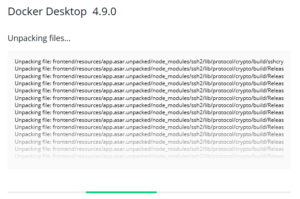
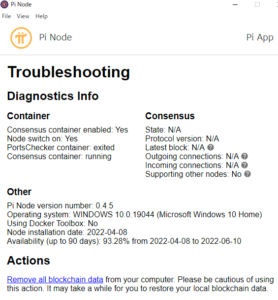
Naturally, the Pi Node stops.
Both Out and In become N/A.
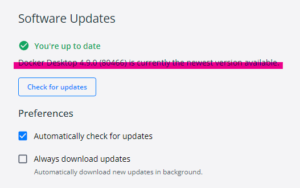
After the update is finished, Docker will automatically restart. When the HOME screen is displayed, the update process is complete. If you click the gear icon again and display the Software Updates screen,
The display has changed like this.
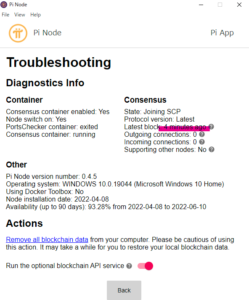
After the update was finished, the Pi Node automatically started operating normally.
Looking at the troubleshooting log, it seems the node was stopped for 4 minutes.
This concludes the Docker update process.
Looking back now, I think I should have stopped the Pi Node when updating Docker. I apologize if this was not the correct procedure.